

Export PDF
Turn a folder of thumbnails into a delivered content manifest.
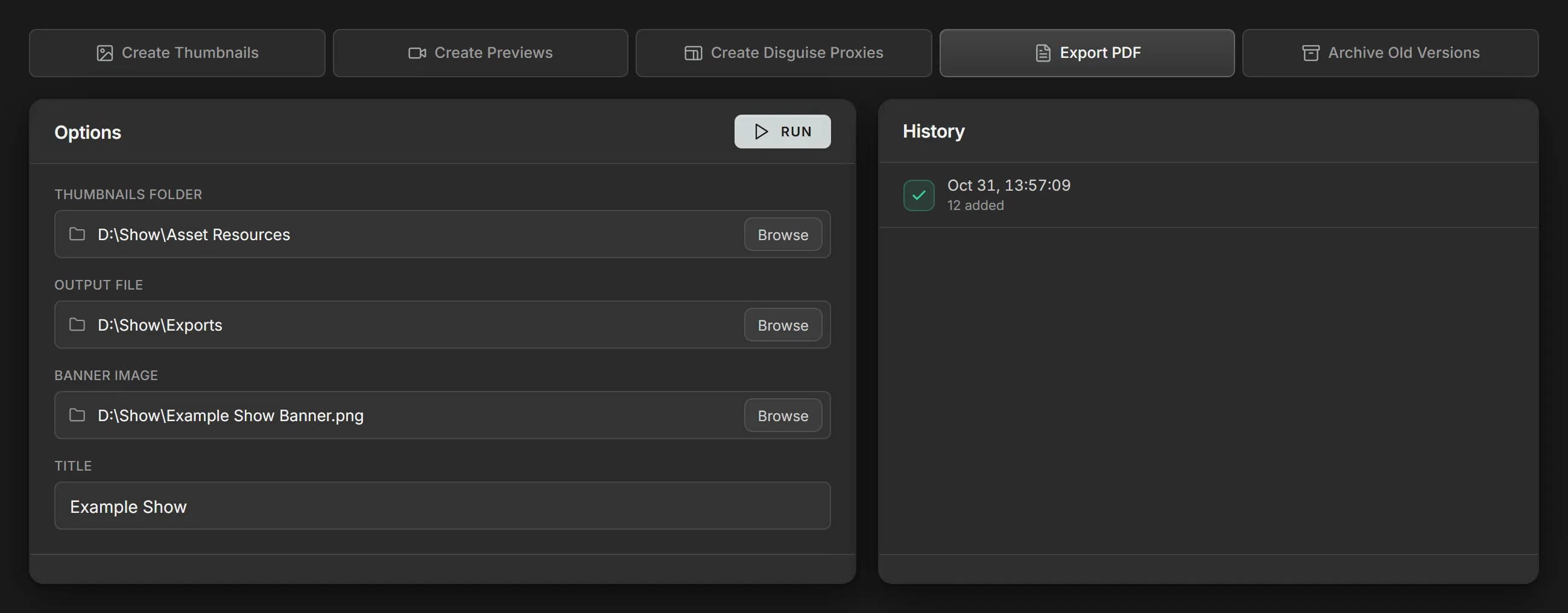
Method
Section titled “Method”Export PDF scans the Thumbnails folder, and every folder inside it, for JPEG and PNG images and writes them to the Output file as a delivered content manifest: a title page, followed by pages of thumbnails in rows per file.
When Volare sets up a show folder, Thumbnails folder and Output file default to the show’s Asset Resources and Exports folders.
Title page
Section titled “Title page”The title page shows the Title, the Banner image, Content Overview and the date the PDF was generated. With no Title, it shows the show’s name followed by Media.
Folder labels
Section titled “Folder labels”Thumbnails are grouped by folder, each group under a label made from the folder’s
path inside the Thumbnails folder. The first folder in the path is the
label’s Folder line, and the rest is its File line. Thumbnails in
Asset Resources\Song_01\Intro_v02 are labeled:
Folder: Song_01File: Intro_v02Output layout
Section titled “Output layout”Output file can be a file or a folder. With a file, the manifest is saved under that name:
Exports\Manifest.pdfWith a folder, each run saves a new manifest with the date and time in its name:
Exports\thumbnail-export-2026-10-31T16-30-05.pdfParameters
Section titled “Parameters”| Parameter | Details |
|---|---|
| Thumbnails folder | The folder of images to generate the PDF from. |
| Output file | The PDF to write. See Output layout. |
| Banner image | The image shown on the title page. Optional. |
| Title | The title shown on the title page. Optional. |