

Deliverables
Create and edit the specs files are checked against.
Method
Section titled “Method”The Deliverables page holds the specs Volare checks every file against. The Video section lists each deliverable, the codecs, resolution and frame rate a file must have, with the Global Fallback on top for files that don’t name one. The Audio section holds one audio spec for the whole show. How a file is matched to its deliverable, and what each result means, is covered in Deliverables and error checking.
Changing a spec re-grades every file Volare has already checked, using what it has already read from each one, so results across the show always reflect the current specs. Adding or removing a deliverable, changing its identifier, codecs, resolution or frame rate, an import that adds or changes one, and saving a new audio spec all re-grade. A new description or color doesn’t change any result, so it’s saved without one.
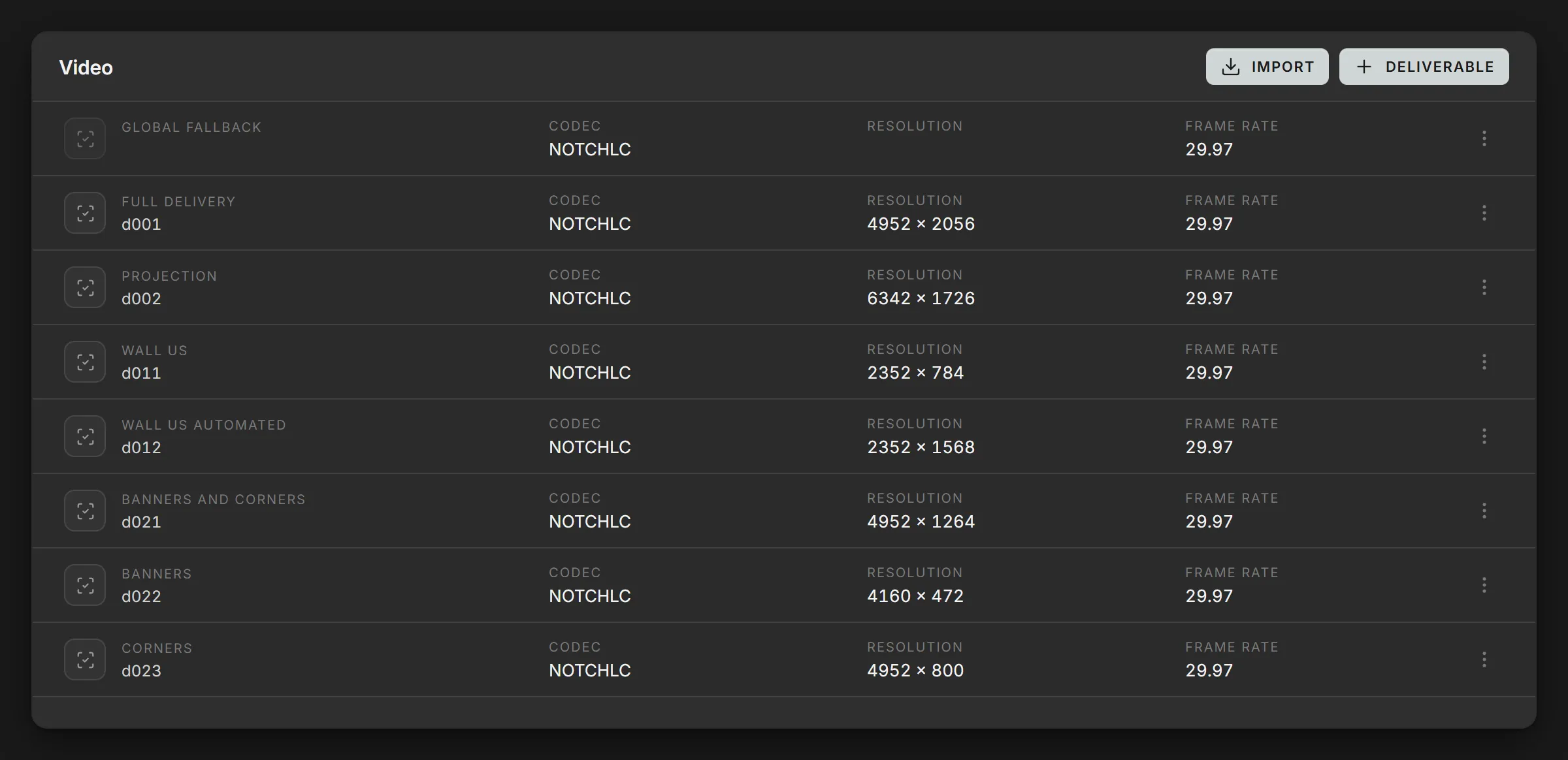
Each row shows a deliverable’s description and identifier, with its codecs, resolution and frame rate. Selecting + Deliverable opens the Add deliverable dialog. Each row’s More actions menu (⋮) holds:
- Edit: change any of its fields. Save becomes available once something has changed.
- Duplicate: open the dialog filled in from this deliverable, with
_copyadded to the identifier and (Copy) to the description. Nothing is saved until Add is selected. - Remove: delete the deliverable.
Dragging a row by its icon reorders the list. The order and the colors are there to help read the page, and don’t affect how files are checked.
Give a duplicate its own identifier before adding it. While
d001andd001_copyboth exist, a file namedshow_d001_copy_v01.movholds both identifiers, so it matches neither and is checked against the Global Fallback.
Deliverable parameters
Section titled “Deliverable parameters”| Parameter | Details |
|---|---|
| Identifier | The ID a filename carries to use this spec, such as d001, screen_a or upstage_wall. Saved in lowercase, and each one is unique. |
| Description | A friendly name, such as Full Delivery or Projection. |
| Codec | The codecs a file may use: DXV, H264, H265, HAP, NOTCHLC, PNG, PRORES and TIFF. Select one or more. |
| Resolution | The exact width × height, in pixels. |
| Frame rate | The exact frame rate: 23.976, 24, 25, 29.97, 30, 50, 59.94 or 60. |
| Color | A color for the row, to help group deliverables at a glance. |
Every field apart from Color has to be filled in before Add becomes available, because an empty field would let every file pass on it.
Global Fallback
Section titled “Global Fallback”The Global Fallback checks any file whose name doesn’t hold a deliverable’s identifier, so that files without conformed naming are still checked against the show’s codecs and frame rate. It always sits at the top of the list, and its More actions menu holds only Edit: its codecs and frame rate can change, but it has no identifier, resolution or color, and keeps its name. With no resolution to compare against, a file checked against it always shows its resolution as unknown. A new show starts with a Global Fallback of NOTCHLC at 29.97.
Importing
Section titled “Importing”Deliverables defined elsewhere, such as in Airtable, can be brought in with
Import in the Video section, choosing a .csv or .txt file. The file
starts with a row of column names, then holds one deliverable per line. An
Airtable export works as it is: extra columns are ignored, and column names are
matched ignoring case, spaces and punctuation, so Frame Rate and framerate
are the same column.
| Column | Holds |
|---|---|
identifier or id | The deliverable’s identifier. A row without one is ignored. |
name | Its description. |
codecs or codec | One or more codecs, separated by / or ,. |
resolution or res, or width and height | Such as 3840x2160, 3840 × 2160 or 3840px x 2160px. |
framerate or fps | Such as 29.97. |
tone | Optional: the row’s color. |
A row whose identifier already exists updates that deliverable; any other row adds a new one. If the file has two rows with the same identifier, the later one wins. The Global Fallback has no identifier, so an import never changes it.
A row with an empty field is left out. When that happens, an Import failed pop-up lists each row left out with the fields it’s missing, and the other rows are imported as usual.
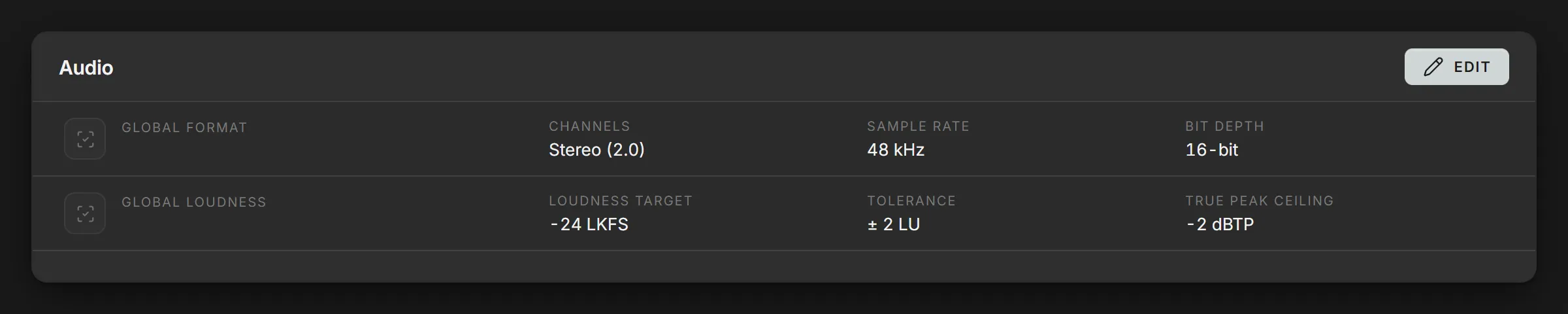
The Audio section shows the show’s audio spec in two rows: Global Format for the channels, sample rate and bit depth, and Global Loudness for the loudness target, tolerance and true peak ceiling. Selecting Edit opens the Edit audio dialog; Save becomes available once a value has changed.
With Any, Volare passes whatever the file has. With Not checked, Volare still measures the value and shows it, but doesn’t pass or fail the file on it.
Audio parameters
Section titled “Audio parameters”| Parameter | Details |
|---|---|
| Channels | Mono (1.0), Stereo (2.0), 5.1 Surround or Any. Starts at Stereo (2.0). |
| Sample rate | 44.1 kHz, 48 kHz, 96 kHz or Any. Starts at 48 kHz. |
| Bit depth | 16-bit, 24-bit, 32-bit float or Any. Starts at 16-bit. |
| Loudness target | -23 LUFS, -24 LKFS, -27 LKFS or Not checked. Starts at -24 LKFS. -23 LUFS (EBU R128) and -24 LKFS (ATSC A/85) are two different delivery standards. |
| Tolerance | How far from the target still passes: ± 1 LU, ± 2 LU or ± 3 LU. Starts at ± 2 LU. To stop checking loudness, set Loudness target to Not checked. |
| True peak ceiling | -1 dBTP, -2 dBTP, -3 dBTP or Not checked. Starts at -2 dBTP. |