

Drive monitoring
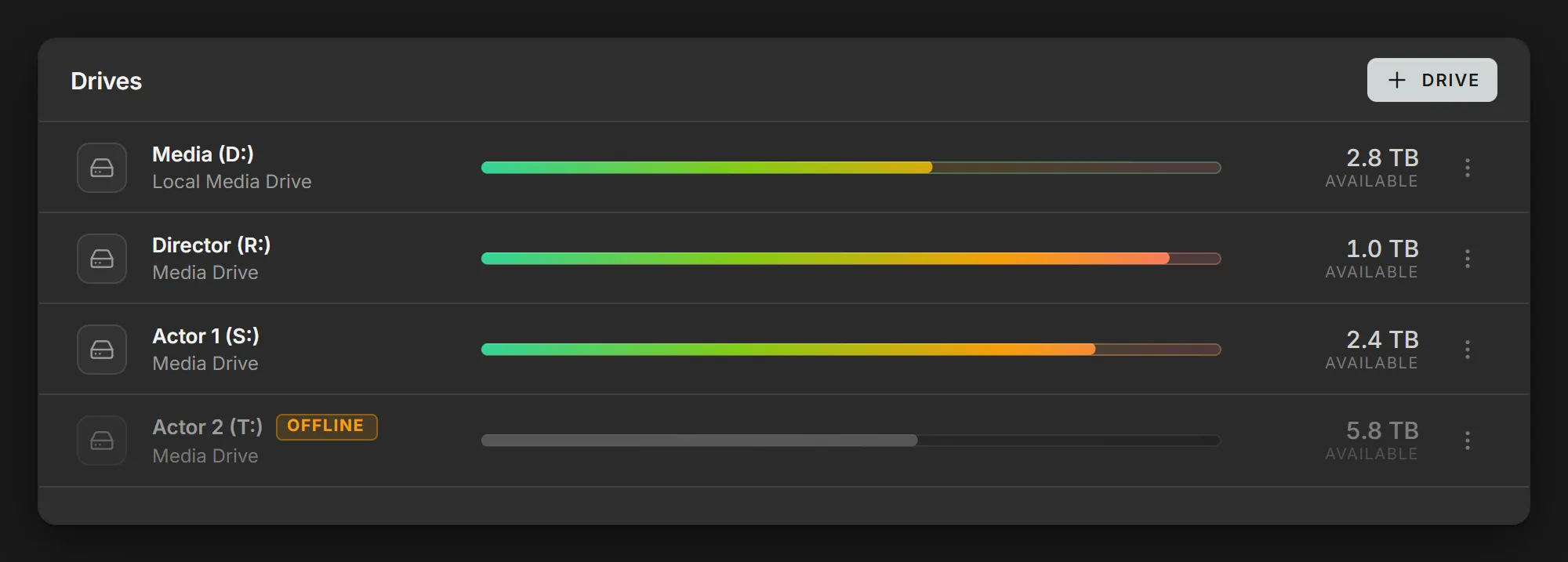
Volare can monitor the capacity of the host workstation’s drives and of mapped network shares, this is configured and displayed in the Drives section of the Overview page. Once a drive is monitored, if it becomes unreachable, it gets flagged as offline until the drive is reachable again.
Adding a drive
Section titled “Adding a drive”- On the Overview page, select + Drive in the Drives section.
- Under Drive, pick the drive. The list shows every drive on the host workstation that isn’t monitored yet.
- Optionally, give it a Description, such as Media Drive or Workstation A.
- Select Add.
Monitoring a network share
Section titled “Monitoring a network share”Volare finds drives by drive letter, so map the share to a letter first:
- In File Explorer’s address bar, type
\\and the server’s IP address, such as\\192.168.30.101, and press Enter. Sign in if Windows asks. - Right-click the share and select Map network drive.
- Choose a drive letter, tick Reconnect at sign-in so the mapping survives a restart, and select Finish.
Then add that letter with + Drive in Volare.
Reading the drive list
Section titled “Reading the drive list”Each row shows:
- The drive’s name as shown in File Explorer, such as Director (R:), with your description underneath.
- A bar showing how full the drive is, as a percentage.
- How much space is available. Hover over the figure for details, such as 1.0 TB of 13.9 TB free · 93% used.
A half-full 1 TB drive and a half-full 8 TB drive have the same bar, even though the 8 TB drive has far more space left. To compare actual space, hover for details.
When a drive goes offline
Section titled “When a drive goes offline”A drive that drops shows as Offline within about 30 seconds. Its row gets an Offline tag, its bar turns gray, and the Overview item in the sidebar shows a badge.
Once the drive is reachable again, the tag clears. After a server restarts, it can take up to about a minute longer to show as online.
Changing the list
Section titled “Changing the list”Each row has a More actions menu (⋮) on the right:
- Edit changes the description.
- Remove stops monitoring the drive.
To reorder the drives, drag a drive by its icon.